wandb version 0.8.28, W&B can save the code from your main training file where you call wandb.init().
Save library code
When you enable code saving, W&B saves the code from the file that calledwandb.init(). To save additional library code, you have three options:
Call wandb.Run.log_code(".") after calling wandb.init()
Pass a settings object to wandb.init() with code_dir set
Set code saving in the UI
In addition to setting code saving programmatically, you can configure defaults in the UI at the scope of a team or the organization. Team and organization controls are documented in Configure privacy settings.Team
By default, W&B disables code saving for all teams. Before you can turn it on for a team, an organization admin must turn it on for the organization. See the Organization section.Team admins open the team Settings page, go to the Privacy section, and configure Enable code saving by default for runs in that team. This option is available only when an organization admin has not enforced code saving restrictions for the whole organization. For navigation steps, see Configure privacy settings for a team.
Organization
Organization admins open organization Settings, go to the Privacy section, and can turn on Enforce default code saving restrictions so code saving stays off by default for every team. While this enforcement is on, team admins cannot turn on Enable code saving by default for a team. For the full list of organization controls, see Enforce privacy settings for all teams.Code comparer
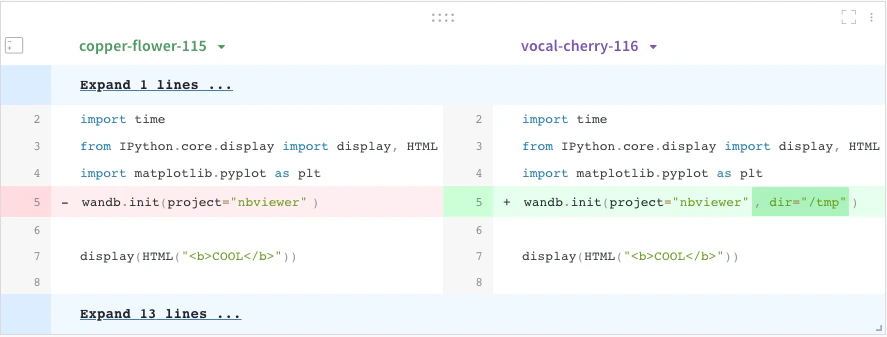
Compare code used in different W&B runs:- Select the Add panels button in the top right corner of the page.
- Expand TEXT AND CODE dropdown and select Code.
Jupyter session history
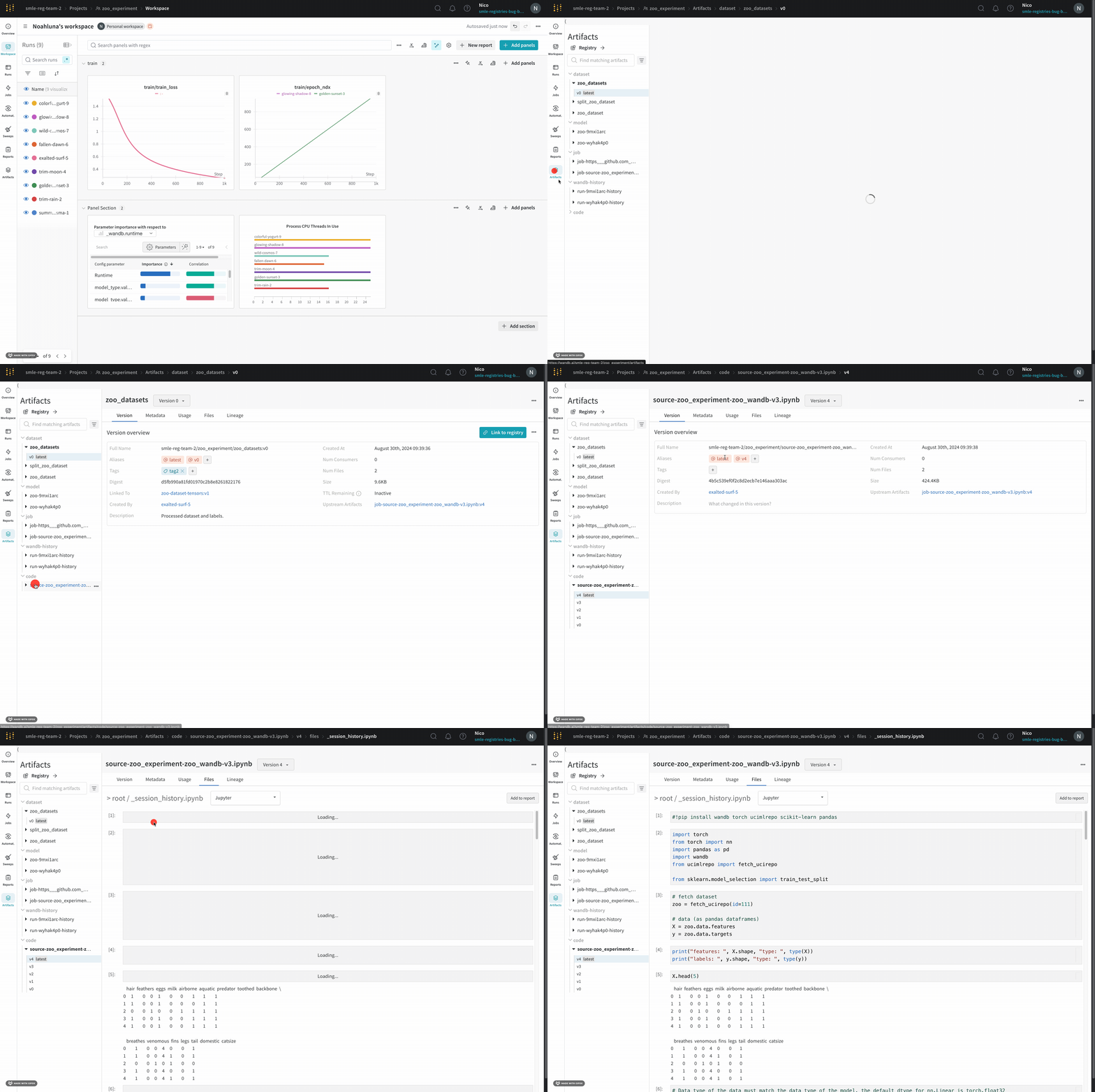
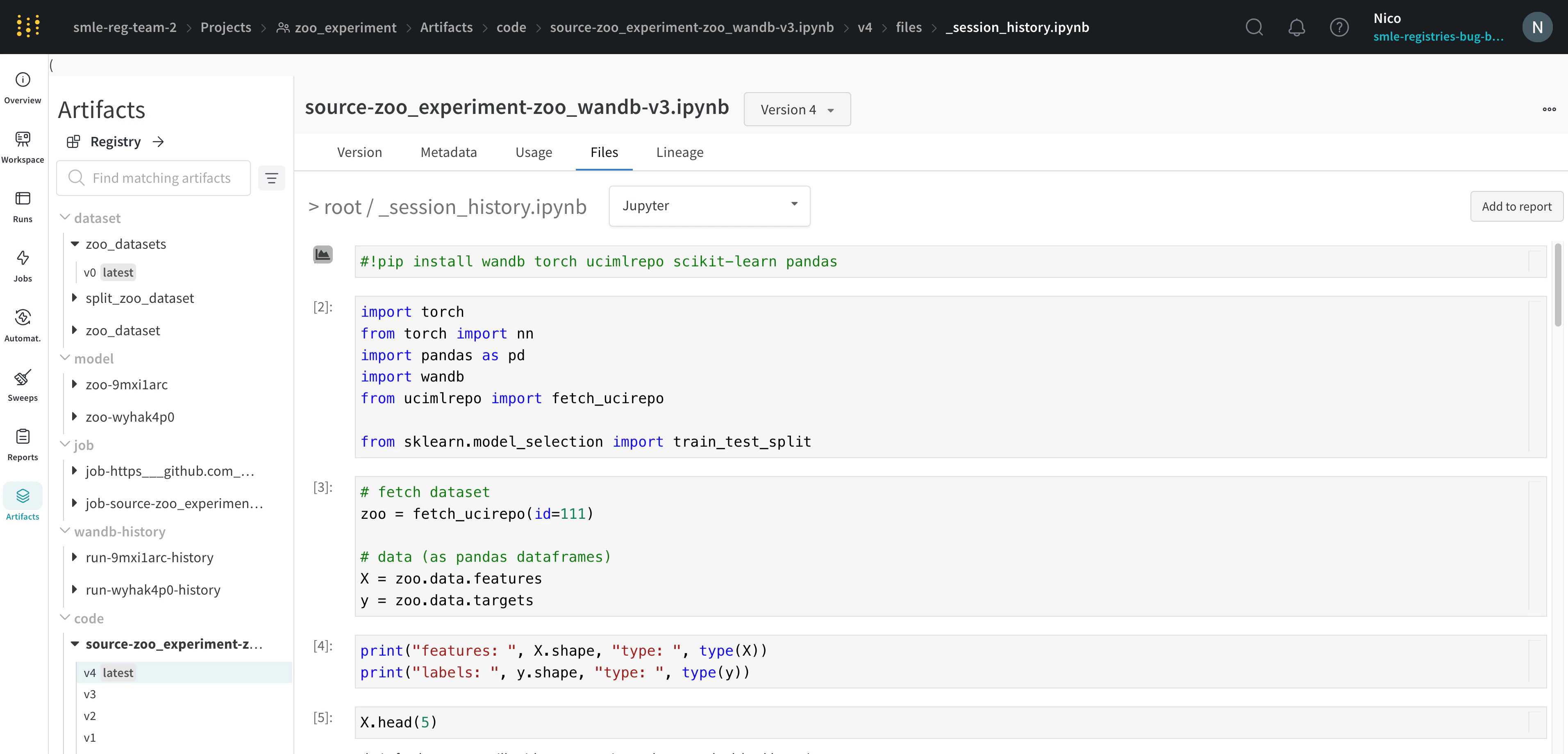
W&B saves the history of code executed in your Jupyter notebook session. When you call wandb.init() inside of Jupyter, W&B adds a hook to automatically save a Jupyter notebook containing the history of code executed in your current session.- Navigate to your project workspaces that contains your code.
- Select the Artifacts tab in the project sidebar.
- Expand the code artifact.
- Select the Files tab.